
Overview
Human handoff lets a real person on your team step into a conversation when the AI isn't enough. It works on your website chat and on WhatsApp.
- The customer asks for a person.
- The AI sees that the customer needs a person and alerts your team.
- A team member accepts the chat and takes over.
What happens during a handoff
| Stage | What happens |
|---|---|
| AI answers | The AI handles the conversation as usual. |
| Waiting | The customer has asked for a person. Your team is alerted, and the AI keeps helping in the meantime. |
| Team member | A person accepts the chat and replies. The AI is paused. |
| Back to AI | Once the team member closes the chat, the AI takes over again. |
When a customer asks for a person
What happens depends on whether human handoff and appointment booking are turned on:
| Appointments on | Appointments off | |
|---|---|---|
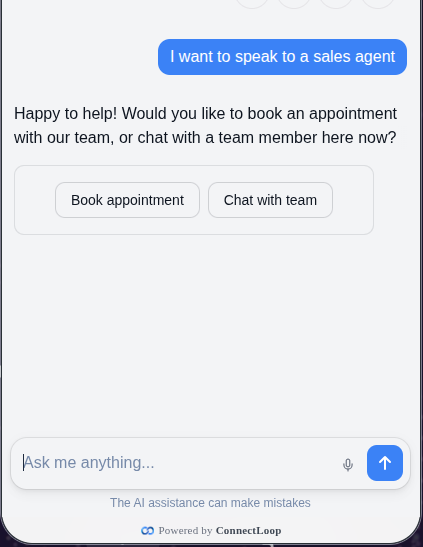
| Handoff on | The AI asks whether the customer wants to Book appointment or Chat with team. | The customer goes straight to Chat with team. No question is asked. |
| Handoff off | The customer goes straight to Book appointment. | The AI keeps answering. |
If nobody on your team is online, the AI offers an appointment instead, as long as booking is on.
Step 1: Turn on human handoff (admins)
Handoff only works while this switch is on.
- Open Human handoff in the left menu of your dashboard.
- Switch on Let customers ask for a person.
While the switch is off, the rest of the page is greyed out. Customers who ask for a person get a polite reply and the AI carries on.
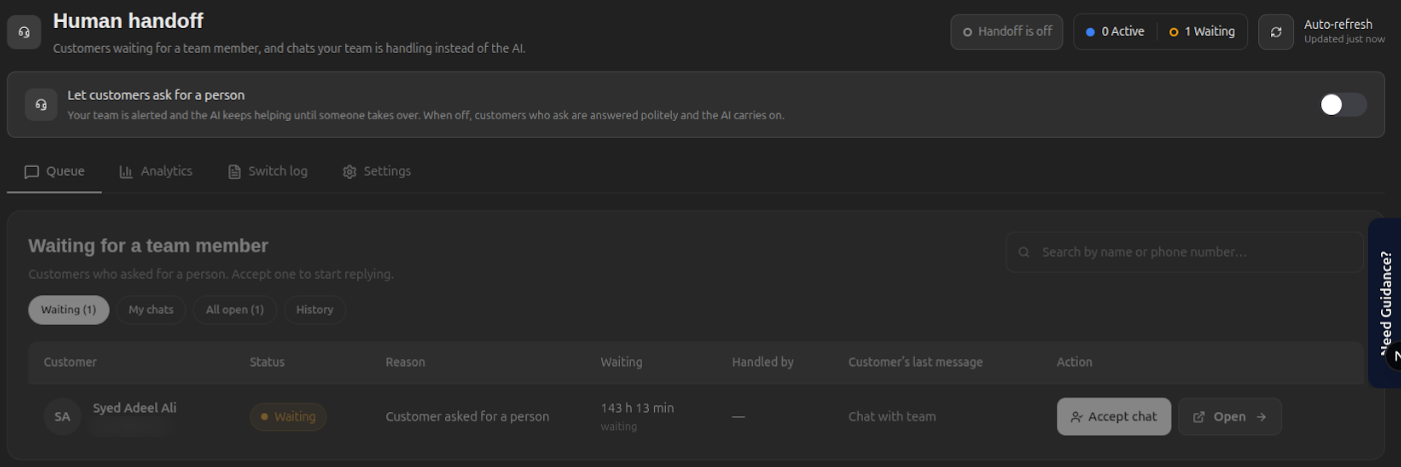
Once the switch is on, human handoff is ready to use.

What the customer sees
When a customer asks for a person (for example, "I want to speak to a sales agent"), the AI tells them your team has been alerted and that it will keep helping in the meantime.
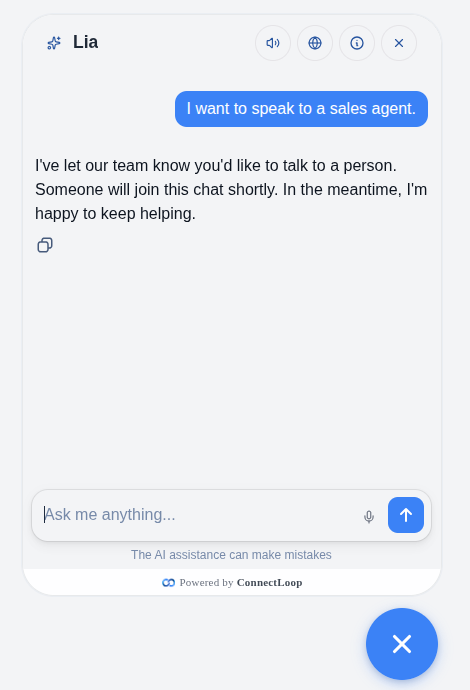
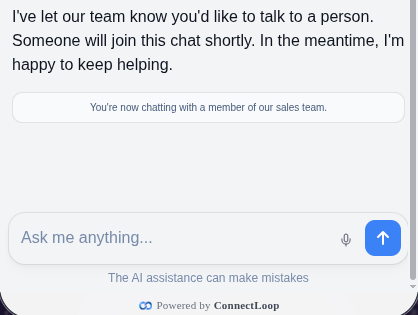
When a team member accepts the chat, the customer sees a notice that they are now chatting with a member of your team.
If appointments are also turned on, the AI first asks whether the customer would like to book an appointment or chat with the team now.
Step 2: Get alerts and stay available
Email alerts (admins)
- Open Notifications in the left menu and add the email addresses that should be alerted.
- Go to Human handoff → Settings and turn on Email the team.
- Click Save changes.
Your status (everyone)
- Check that your status in the top-right corner says Available. It's on by default.
- Keep the dashboard open. A background tab is fine.
At least one team member must be online. Online means Available with the dashboard open. If nobody is online, customers are told no one can join right now, and they're offered an appointment if booking is on.
Who gets an email, and when
| When | Who gets the email |
|---|---|
| Right away, when the customer asks for a person | The addresses listed under Notifications. |
| After 15 minutes, if nobody has accepted yet | The Notifications addresses again, plus team members who are Available right now. This is sent once per chat. |
| After the chat is accepted | Only the person handling the chat, if a new customer message goes unseen for 2 minutes or the chat is quiet for 30 minutes. |
Good to know: the company admin isn't emailed automatically. Add their address under Notifications if they should get alerts.
Step 3: Find who's waiting
Open Human handoff and go to the Queue tab. Use the filters to find chats:
- Waiting: chats nobody has picked up yet.
- My chats: chats you're handling.
- All open: every chat in progress.
- History: closed chats.
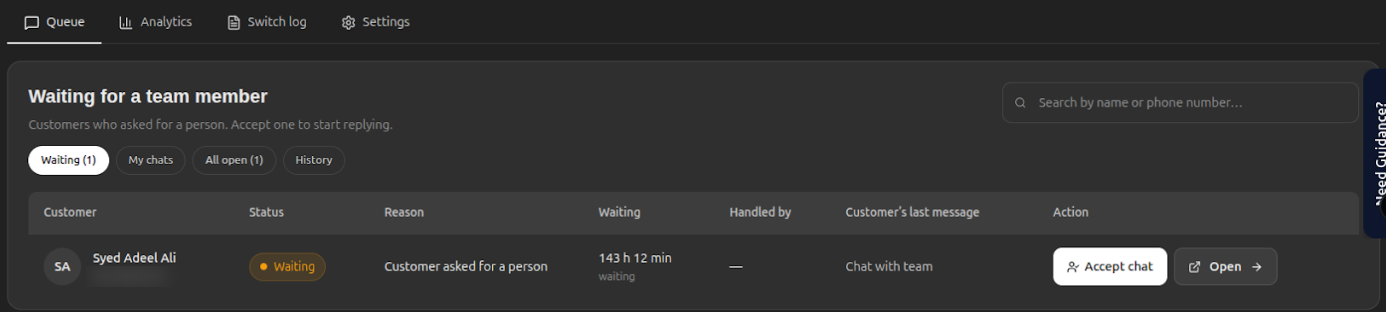
The status colours mean:
- Amber: waiting for a team member.
- Blue: being handled.
- Grey (Expired): the customer last wrote more than 24 hours ago, so the chat can't be accepted.
Step 4: Accept, reply and close
- Click Accept chat next to the customer in the queue.
- Type your message and click Send.
- When you're done, click Close conversation. The AI takes over again.
While you're handling the chat, the AI is paused.
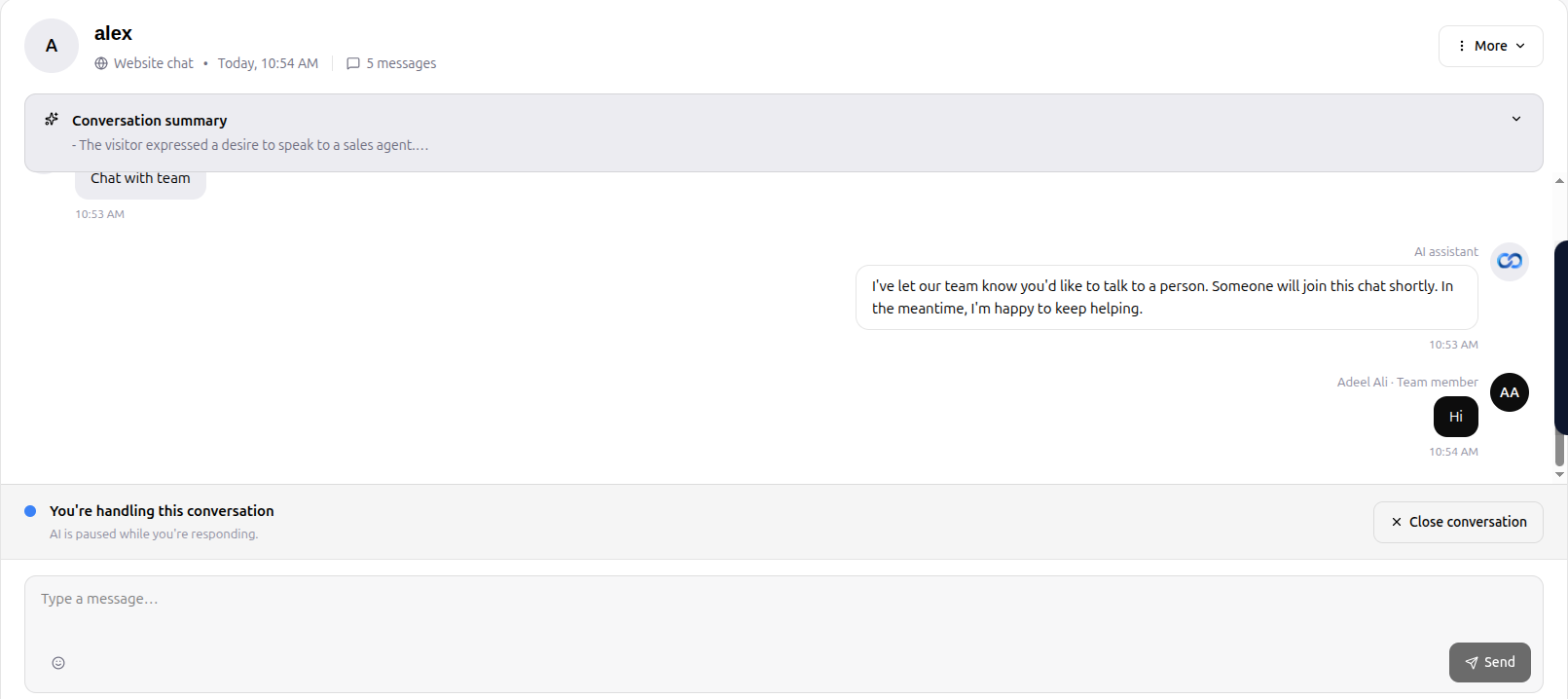
24-hour rule: you can reply for 24 hours after the customer's last message. After that, wait for the customer to write again.
Track results (admins)
The Analytics tab on the Human handoff page shows:
| Metric | What it shows |
|---|---|
| Handoffs | Chats sent to your team. |
| Accepted | Chats a team member picked up. |
| Average wait | Time until someone accepts a chat. |
| Handling time | Time a person spent on the chat. |
Who can do what
| Task | Admins | Team members |
|---|---|---|
| Turn handoff on or off | Yes | No |
| Accept and reply to chats | Yes | Yes |
| View Analytics and the Switch log | Yes | No |
| Change handoff Settings | Yes | No |
Why use human handoff
- Close bigger deals: a salesperson steps in at the right moment.
- Keep customers happy: a person replies before they leave.
- Teach your AI: closed chats show what the AI missed.
- Plan your staffing: wait times show when you need more people online.
Frequently asked questions
Why did nobody get the chat?
At least one team member must be Available with the dashboard open. A closed browser or a sleeping laptop counts as offline after 2 minutes.
Does the customer wait in silence?
No. The AI keeps helping until a team member accepts the chat.
What if I forget to close a chat?
It closes by itself after 24 hours.
Why wasn't my message sent?
Messages with possibly offensive wording are blocked. Reword the message and send it again.
Why does a chat say Expired?
The customer last wrote more than 24 hours ago. An expired chat can't be accepted or answered.
Can I reply after 24 hours?
No. Wait until the customer writes again, then you can reply.