
Overview
Connect your WhatsApp Business account to ConnectLoop so your AI agent can automatically respond to customer messages on WhatsApp.
Once connected, the same AI agent you configured in ConnectLoop will handle WhatsApp conversations using the same:
AI training and knowledge sources
Agent behavior and settings
Appointment booking configuration
Lead capture and qualification flows
Your customers can message your business through WhatsApp, and your ConnectLoop agent Lia will respond automatically on your behalf.
Important Requirements
Before connecting WhatsApp, please note the following:
WhatsApp phone number requirements
The phone number you connect must not currently be used by any WhatsApp account.
The number cannot be connected to:
Personal WhatsApp
WhatsApp Business
Any existing WhatsApp Business Account
If the phone number is already being used with WhatsApp, it must first be removed from that account before it can be connected to ConnectLoop.
Facebook account requirement
A Facebook account is required to connect WhatsApp.
If you do not already have a Facebook account, you can create one during the connection process.
Step 1: Log In to ConnectLoop
Log in to your ConnectLoop account:
https://agents.connectloop.ai/
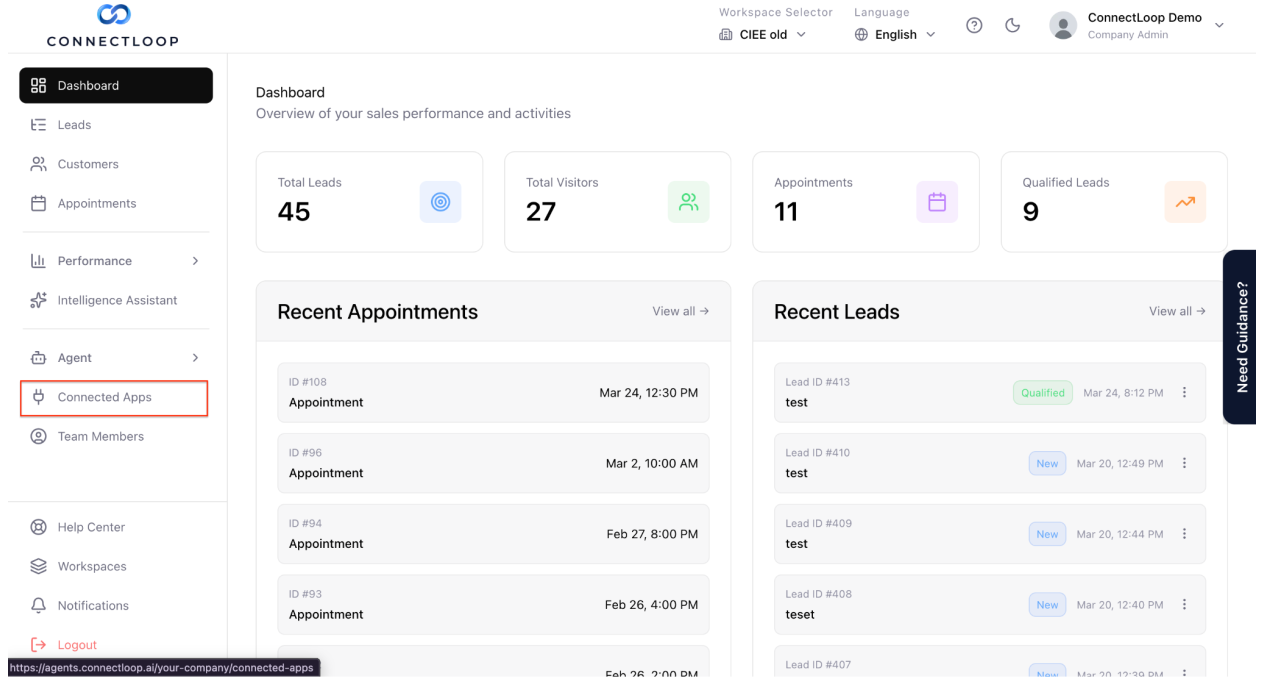
Step 2: Open Connected Apps
From the left sidebar, navigate to:
Connected Apps
or visit:
https://agents.connectloop.ai/your-company/connected-apps
Step 3: Start the WhatsApp Connection
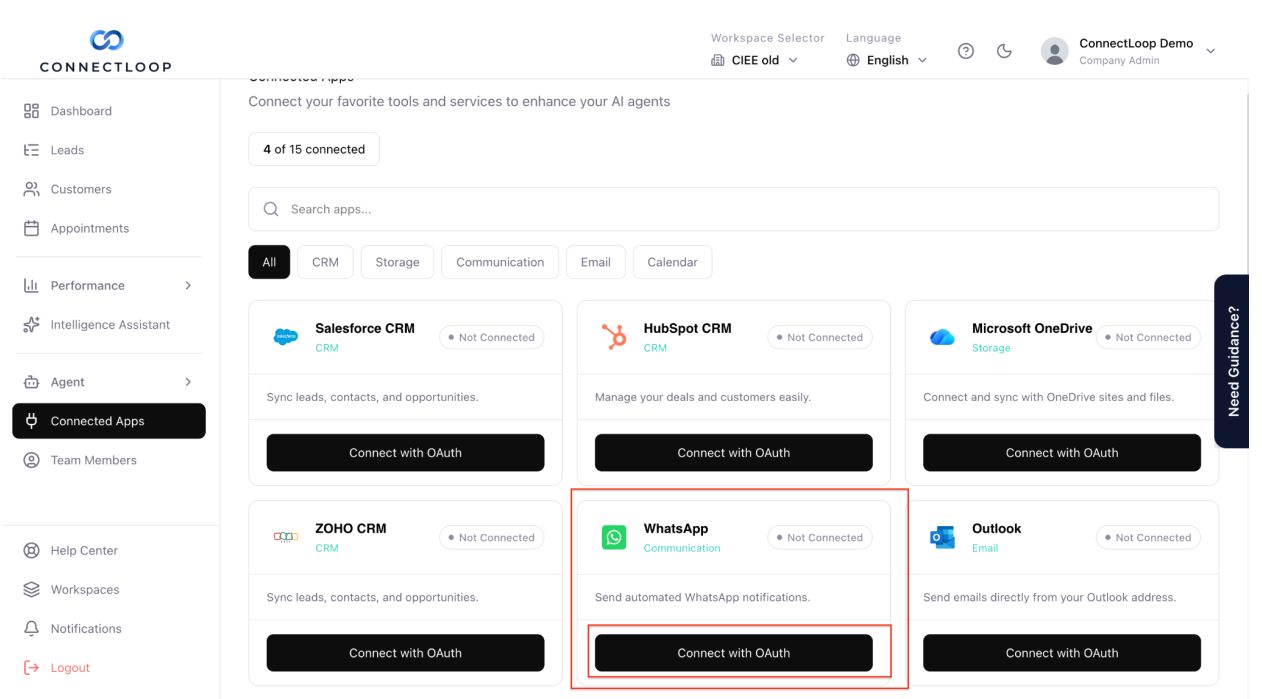
Locate WhatsApp in the Connected Apps page.
Click:
Connect with OAuth
Step 4: Sign In to Facebook
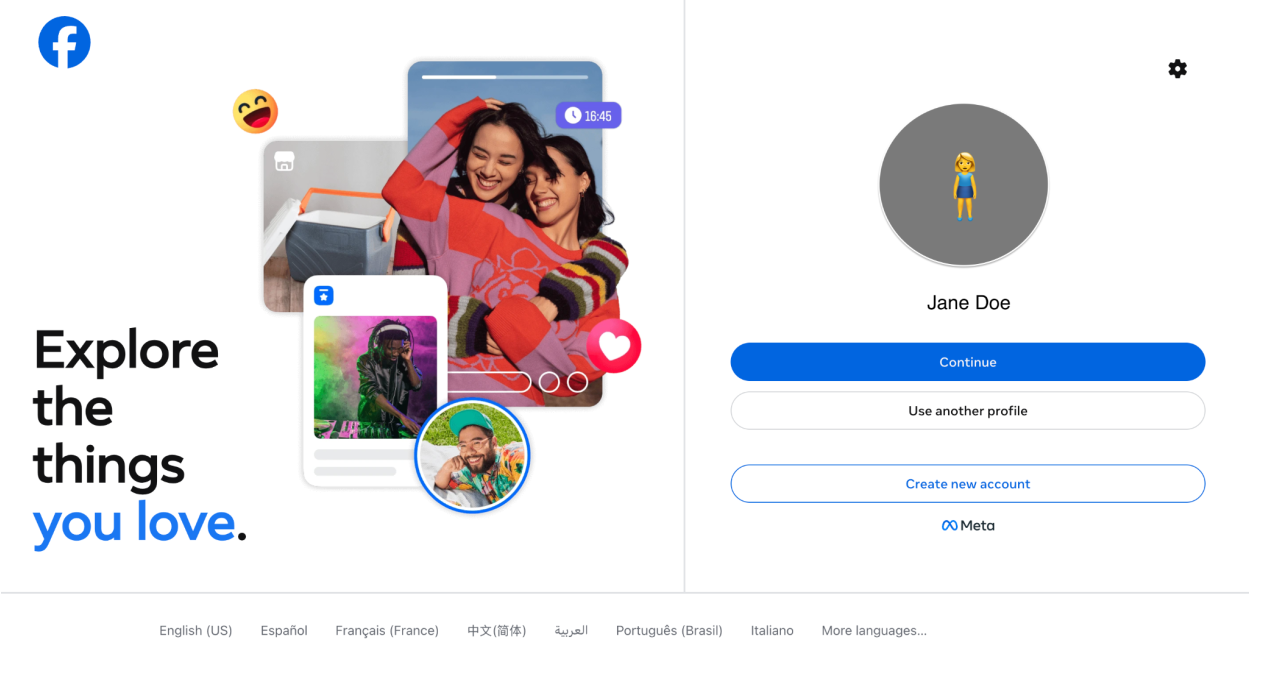
If you are already logged in to Facebook
A Facebook authorization window will open automatically.
If you are not logged in
You will be redirected to Facebook where you can:
Log in to an existing account
Create a new Facebook account
After logging in, the Facebook authorization window will open.
Step 5: Connect Your Facebook Account
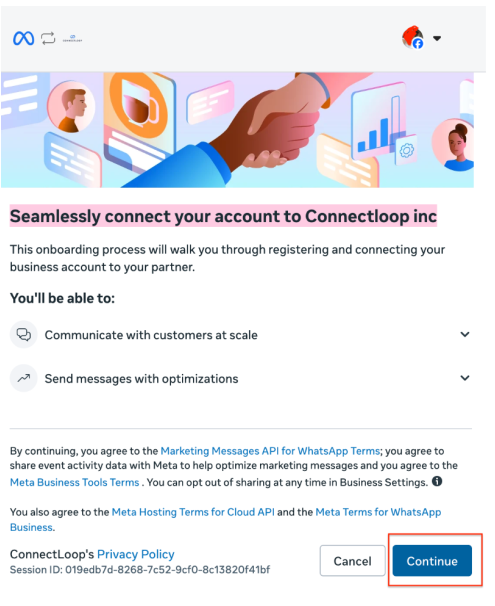
You will see:
Seamlessly connect your account to ConnectLoop Inc
Click:
Continue
Step 6: Select Business Assets
You will see:
Select the business assets to share with ConnectLoop
You can use existing assets or create new ones.
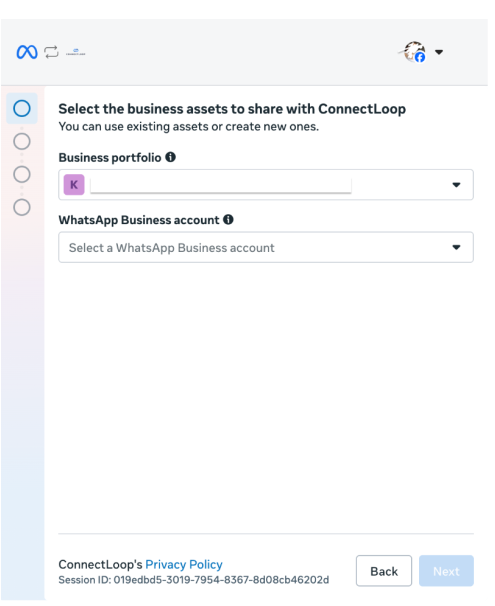
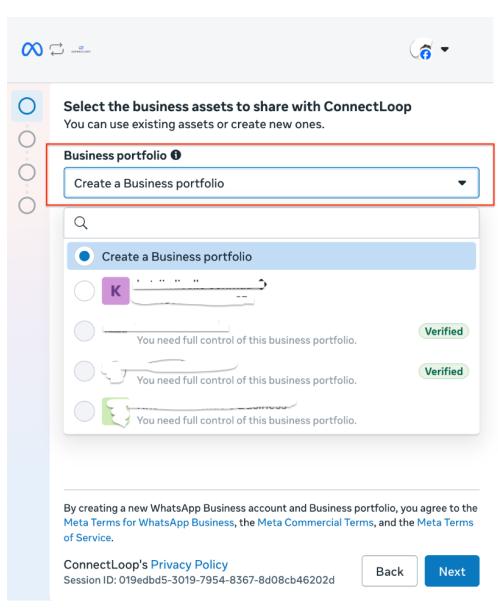
Business Portfolio
Choose one of the following:
Select an existing Business Portfolio
Create a new Business Portfolio
If you do not already have one, choose:
Create a Business Portfolio
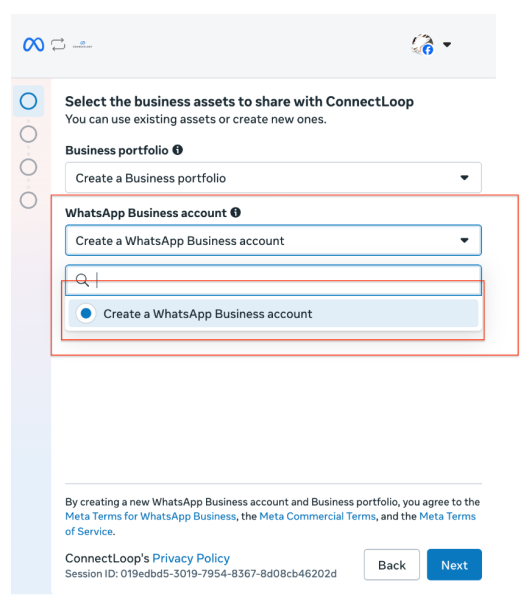
WhatsApp Business Account
Select:
Create a WhatsApp Business Account
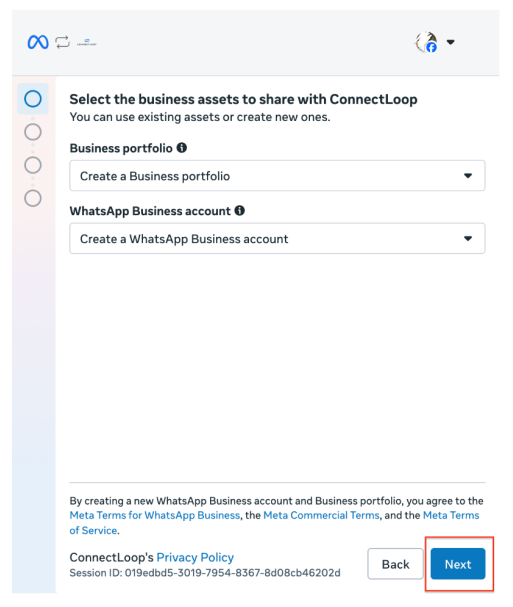
Click:
Next
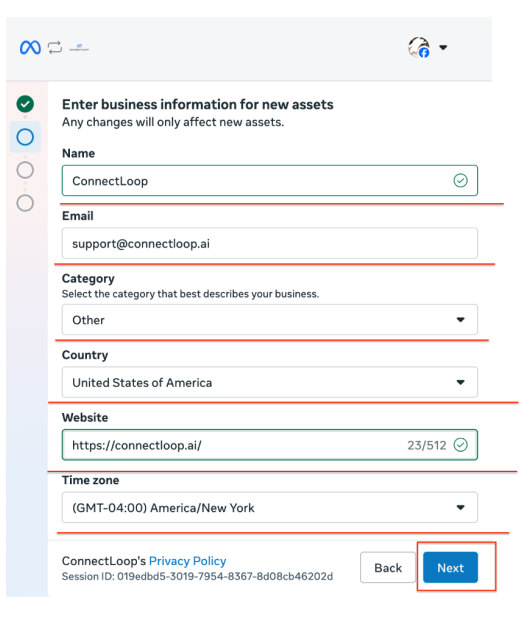
Step 7: Enter Business Information
You will see:
Enter business information for new assets
Fill in your business information.
Click:
Next
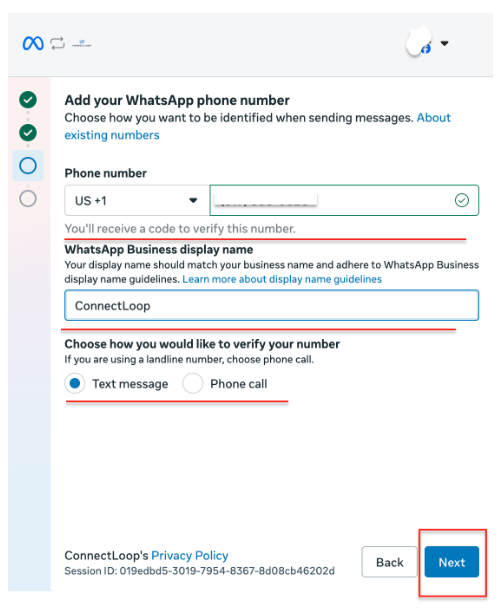
Step 8: Add Your WhatsApp Phone Number
You will see:
Add your WhatsApp phone number
A. Enter your phone number
Enter the phone number you want to connect.
A verification code will be sent to this number.
B. Enter your WhatsApp Business display name
Enter your business name.
Your display name should match your business name and comply with WhatsApp Business naming guidelines.
C. Choose a verification method
Select one of the following:
Text Message (SMS)
Phone Call
If you are using a landline number, choose:
Phone Call
Click:
Next
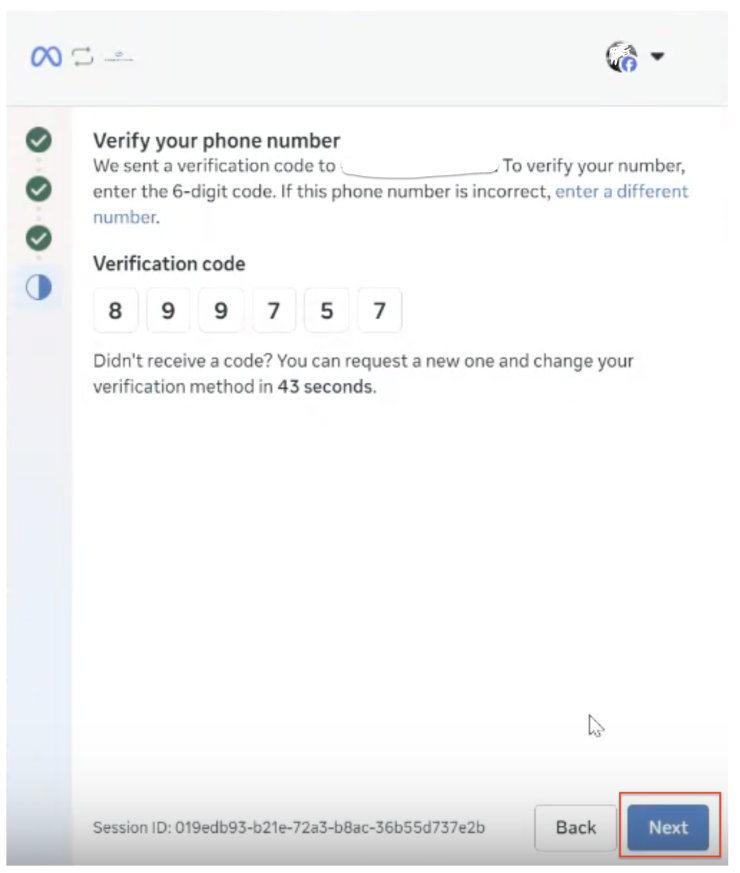
Step 9: Verify Your Phone Number
You will receive a 6-digit verification code.
Enter the code when prompted.
Click:
Next
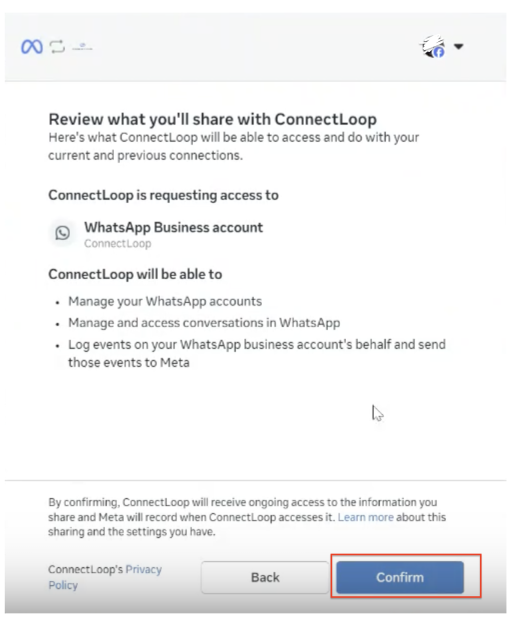
Step 10: Review Permissions
You will see:
Review what you'll share with ConnectLoop
Review the information.
Click:
Confirm
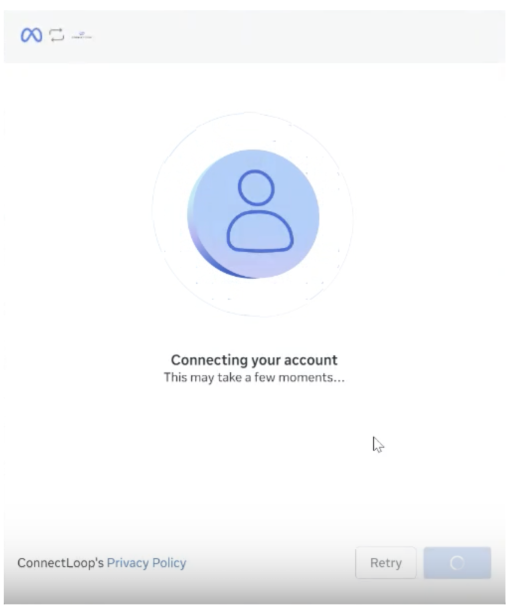
Step 11: Wait for Account Connection
You will see:
Connecting your account
This may take a few moments.
Step 12: Finish Setup
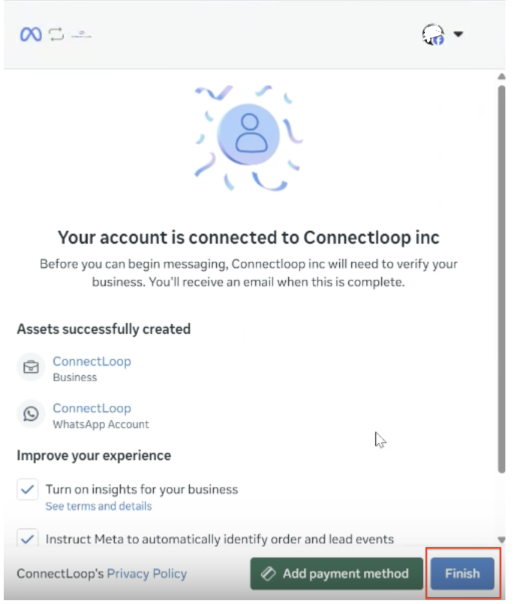
Once completed, you will see:
Your account is successfully connected to ConnectLoop Inc
Click:
Finish
Step 13: Verify the Connection in ConnectLoop
The Facebook window will close and return you to ConnectLoop.
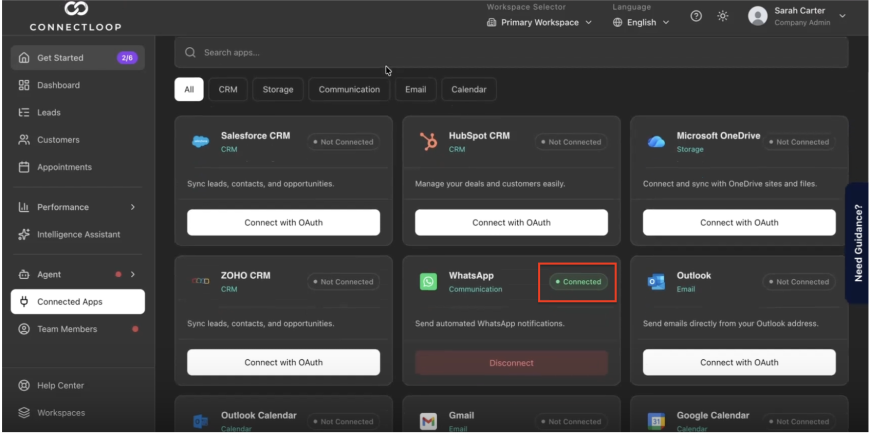
Back on the Connected Apps page:
Refresh the page
Locate WhatsApp
You should now see a
Connected
badge next to WhatsApp.
Step 14: Test Your WhatsApp Agent
To confirm everything is working correctly:
Test the WhatsApp Number
Send a WhatsApp message to the phone number you connected.
Ask a question about your business and verify that the AI agent responds.
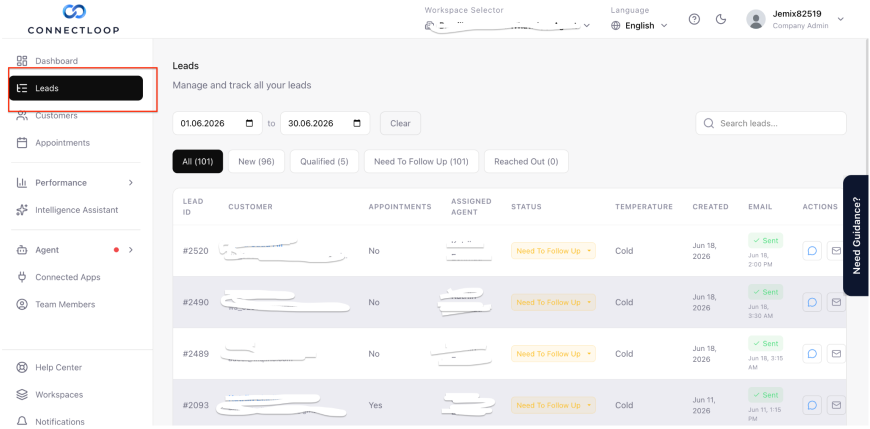
Verify the Conversation in ConnectLoop
Navigate to:
Leads
or visit:
https://agents.connectloop.ai/your-company/leads
The WhatsApp conversation should appear in your Leads list.
What Success Looks Like
Your WhatsApp account shows as Connected in Connected Apps
Your AI agent responds to WhatsApp messages automatically
WhatsApp conversations appear in your Leads dashboard
Customers can now communicate with your business through WhatsApp and receive AI-powered responses from your ConnectLoop agent.
Common Issues & Fixes
WhatsApp does not show as connected
Try the following:
Refresh the Connected Apps page
Wait a few minutes and refresh again
Confirm the Facebook connection process was completed successfully
If the issue persists, contact ConnectLoop Support.
My phone number cannot be connected
This usually means the phone number is already associated with another WhatsApp account. The number must be removed from any existing WhatsApp Personal or WhatsApp Business account before it can be connected to ConnectLoop.
Facebook shows an error
If an error occurs during the Facebook setup process, carefully review the error message and follow Facebook's instructions to resolve the issue before continuing.
Important Notes
The connected phone number cannot already be in use by another WhatsApp account
A Facebook account is required to complete the connection
Your WhatsApp agent uses the same AI training, knowledge, settings, and appointment booking configuration as your ConnectLoop agent
Any future updates you make to your ConnectLoop AI agent will automatically apply to WhatsApp conversations as well
Need Help?
If you run into any issues, chat with our Guide Agent inside the ConnectLoop portal.
You can also contact our support team at:
We'll be happy to help you get everything connected and running successfully.